
How to switch your therapy EHR without losing data
.png)
TL;DR: EHR data migration without the chaos
- Export your client demographics, session notes, and chart documents from your current system (usually three separate exports).
- Use your new EHR’s guided migration tool to validate, map, and import everything automatically.
- Run both systems in parallel for 1-2 weeks to verify nothing was missed.
- Modern platforms complete what used to take 4-5 weeks in a single afternoon of setup, plus an overnight import.
- Upheal’s self-serve migration handles file validation, client matching, and data deduplication automatically.
"Can I switch without losing my data?" It's the question that comes up most on demo calls when a therapist is considering a new EHR. EHR data migration is the process of moving your client records, session notes, billing history, and documents from one electronic health record system to another. It used to mean weeks of careful, manual work. For a lot of practices, it still does. It doesn't have to.
You've spent years building your practice, so the thought of moving all that data (client notes, intake forms, contact information, billing records) feels like a lot to risk. That's a reasonable worry. The tools available now are better than migration's reputation suggests. This guide walks through what's actually involved, why therapists are switching right now, and how to do it without losing a note.
Why therapists are switching EHRs right now
The landscape has shifted. Four factors are pushing therapists to make the move.
Price increases have made SimplePractice unsustainable for solo practitioners. The platform went from $29/month to $49+/month, and critical features are now locked behind a $99/month "Plus" plan. If you want AI-powered clinical notes, that's another $35/month on top. If you started on the old $29 plan and now need Plus-level features plus AI notes, that's $1,200+ more per year just to keep pace.
AI notes are being bolted on as expensive add-ons instead of being built into the core. You shouldn't have to pay extra for features that make you more efficient. Newer platforms ship AI-powered clinical notes as part of the base product because they understand that therapists need tools that do their work, not just store it.
Telehealth quality complaints are pushing therapists away. SimplePractice's built-in video platform isn't known for reliability, and therapists are tired of workarounds.
Group practice limitations exist in older systems. If you're managing multiple providers, billing across different locations, or trying to run a semi-organized group, many legacy EHRs make it harder than it should be.
Most fundamentally, therapists are realizing something important: your EHR should be designed by people who understand therapy, not just general practice management.
What makes EHR data migration feel so hard?
EHR data migration can be challenging primarily because SimplePractice exports require three separate operations, and each one has its own technical quirks that are easy to misconfigure.
You'll need to pull a Client Demographics Report (CSV), a Client Details Report (CSV with historical contact info), and a Data Export (ZIP file containing notes and documents). Each one works differently.
The Client Details Report requires manual date range configuration, and if you miss the range, you lose historical clients. The Data Export runs asynchronously and can take over an hour for large practices. Notes export as PDFs, not editable text. Chart PDFs come disconnected from client records and require manual re-association in your new system. The file is password-protected by default, which blocks processing in most data migration systems, so you have to remember to uncheck that option.
For most therapists, this process means planning 4-5 weeks of overlap between systems, 10-15 hours of manual work, and constant worry about whether something got missed. A systematic review of EHR-to-EHR transitions confirmed that data integrity, access to legacy records, and personnel burden are the top challenges in any migration (PMC, 2020).
This is why most therapists don't switch. The switching cost feels higher than the pain of staying.
What data do you actually need to bring with you?
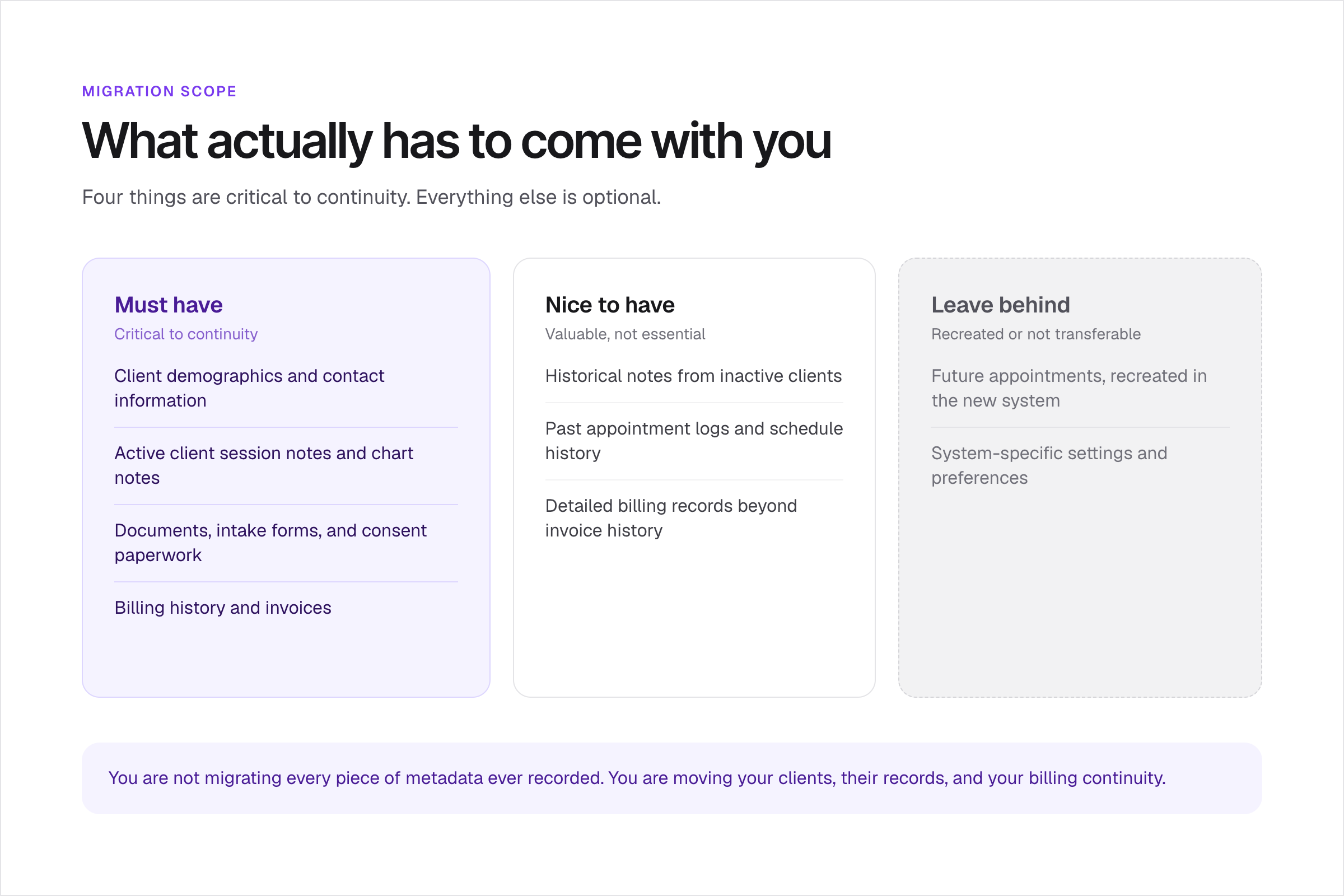
You need to bring four things: client demographics, active session notes and chart notes, documents and intake forms, and billing history. Everything else is optional.
Before you start the export process, decide what matters.
Must have (critical to continuity):
- Client demographics and contact information
- Active client session notes and chart notes
- Documents, intake forms, and consent paperwork
- Billing history and invoices (for ongoing claims and coverage verification)
Nice to have (valuable but not essential):
- Historical notes from inactive clients (consider archiving these as read-only PDFs in external storage)
- Past appointment logs and schedule history
- Detailed billing records beyond the essential invoice history
Don't worry about:
- Future appointments (you'll recreate these in your new system anyway)
- System-specific settings and preferences (they won't transfer, and your new EHR will do things differently)
This framework helps you stay focused. You're not migrating every piece of metadata ever recorded. You're moving the essential work: your clients, their records, and your billing continuity.
How to switch your EHR step by step (the traditional way)
If you're moving to a new platform that doesn't have guided migration tools, here's the manual process.
1. Audit your current data. Export a test file from your current EHR and understand what you're working with. How many active clients do you have? How many years of notes? Do you have documents or just plain text notes?
2. Export all data from your current EHR.
From SimplePractice:
- Client Demographics Report: Go to Analytics > Reports > Client demographics. Select all fields, export as CSV.
- Client Details Report: Go to Analytics > Reports > Client details. Set the date range to start when your account was created, so you don't miss historical clients, then export as CSV.
- Data Export: Go to Settings > Practice > Data export. Choose Complete to include session notes, chart notes, and documents. You'll get an emailed link once the file is ready to download.
From TherapyNotes: chart data exports one client at a time, not in bulk, so budget extra time if you have a full caseload.
From TheraNest (Ensora Health): exports come as CSV and CCD files that typically need manual reconciliation before your new system can use them.
3. Evaluate your new EHR. Look for these criteria: Does it support direct data import from your current system? Can it auto-match existing clients to prevent duplicates? Will your session notes import as editable text or just PDFs? Is the pricing transparent with no hidden add-ons? Does it include telehealth, AI clinical notes, and group practice features by default?
If you're evaluating what matters most, our guide to the best EHR for private practice in 2026 covers the full landscape.
4. Manually re-associate chart PDFs with client records. In most systems, chart PDFs import separately from client demographics. You'll need to attach each PDF to the correct client in your new system.
5. Re-enter active client notes. If your notes are exported as PDFs, you'll need to type key information back into your new system's note format. This is where most of the manual hours accumulate.
6. Run both systems in parallel for 2-4 weeks. During this overlap, continue entering notes in both systems. This catches any data that didn't migrate correctly before you deactivate your old system.
7. Notify clients of portal and login changes. Send a message to active clients explaining the transition, new login instructions, and confirmation that all their information moved securely.
8. Deactivate your old EHR only after full verification. Don't shut it down immediately. Keep the account active for at least a month so you can refer back if needed.
This process works. It's also why most therapists stay with what they have. The HealthIT.gov guide to switching EHRs recommends negotiating transition provisions upfront, but few vendors include them in standard contracts.
See how Upheal supports therapists making this transition.
Explore Upheal for individual providers
What if your new EHR handled the migration for you?
Some EHRs, including Upheal, have built guided, self-serve migration tools that handle file validation, client matching, and data import automatically. You're not doing any of this manually.
Here's how that actually works.
1. Export your files from SimplePractice. Yes, you still do this. But this time, the new platform's UI walks you step by step through the export process, shows you exactly which buttons to click, and even troubleshoots common errors (like the password-protection issue).
2. Upload to your new EHR. Drag and drop your three export files into the migration portal. The system validates file format, checks for corruption, and tells you immediately if something's wrong.
3. The system processes your data automatically. While you wait (or step away), the platform analyzes your exports, extracts structured data from PDFs, matches client names across different file formats, and identifies potential duplicates.
4. Map your providers. If you have associate therapists, the system shows you each provider in your old system and asks you to assign them to a team member in the new one. Takes 2-3 minutes.
5. Map your clients. This is where modern EHR data migration tools shine. The system shows you a list of all clients and flags any that might be duplicates (same name, same email, close variations). You decide: import both, merge them, or skip. The system learns from your choices.
6. Review before importing. You see a read-only summary of everything that will migrate: total clients, total notes, documents, providers, and invoices. Nothing happens until you click "confirm import."
7. The import runs in the background. Depending on your practice size, this takes 2-12 hours. You close your laptop. When you return, all your data is there, properly organized, with session notes formatted in your new system's structure, documents attached to the correct clients, and billing records ready to reference.
What used to take 4-5 weeks and 10-15 hours of manual work now takes an afternoon of setup and an overnight import. Upheal's chart migration is one of the only guided, self-serve migration tools built specifically for therapy practices.
Once your data is in Upheal, it's not just sitting there. Upheal's built-in AI assistant can pull from your migrated notes to prep you for sessions, flag clients who need follow-up, draft discharge summaries, or track billing across your caseload, starting from day one.
If getting your records over safely is what's been holding you back, try Upheal free, no credit card required.
Traditional migration vs. Upheal migration
Make the switch confidently
Switching EHRs carries real risk, mostly the risk of losing something you can't get back. A plan, and a migration tool that validates your data instead of just moving it, is what brings that risk down. Your clients get matched carefully, your notes stay organized, and most of the process happens in the background while you keep working.
If you're comparing platforms rather than just migration tools, Upheal's EHR comparison page breaks down features, pricing, and migration support across the platforms therapists use most.
Start free at upheal.io/signup, migration included.
Frequently asked questions
Can I export my notes from SimplePractice?
Yes, SimplePractice's Data Export feature includes all session notes, chart notes, and documents. The catch is that session notes export as PDFs, not editable text. So your notes are preserved, but you'll need to either keep them as read-only PDFs or retype key information into your new system's format. For active clients, most therapists choose to keep the PDFs as a backup reference and then enter fresh notes in the new system going forward.
Will I lose my billing history when I switch EHRs?
No, your billing records are separate from your clinical notes, and most practice management systems allow you to export full invoice history. What you lose is the ability to edit or reprocess old invoices in your new system (most systems don't import invoice detail, just the summary). The important thing (the record of what was paid, what was written off, and what's pending) transfers cleanly. Keep your old system's invoice records as a backup for compliance and reference.
How long does the whole process take?
With a guided migration tool, you can complete setup in 2-3 hours and the background import in 2-12 hours, depending on your practice size. If you're doing it manually, expect 4-5 weeks of parallel system running, with 10-15 hours of active work spread across that time. Most therapists choose the manual route not because it's faster overall, but because they spread the work out so it doesn't feel as intense in one week.
What if I have a group practice?
Group practices can migrate everything, including separate provider records, client assignments, and billing per provider. Make sure your new EHR actually supports multi-provider workflows before you switch. Some systems claim to, but group practices often find limitations around shared notes, separate billing, and scheduling across multiple calendars. Upheal is built for group practices from the ground up, so migrations from group practices to Upheal include automatic provider mapping and billing structure preservation.
Is Upheal HIPAA compliant?
Yes. Upheal is fully HIPAA compliant, including BAA (Business Associate Agreement) coverage. All data is encrypted at rest and in transit. Migrations use secure, temporary storage that's automatically deleted after import completes. If HIPAA compliance matters for your practice, and it should, verify that your new platform has a signed BAA in place before you migrate.
Can I migrate from other EHRs besides SimplePractice?
Yes. Upheal's Bulk Client Import tool is EHR-agnostic: it accepts client data exported from any system, not just SimplePractice, as long as it's prepared in the required CSV or XLSX format. Document and chart-file migration support for platforms beyond SimplePractice is still rolling out, so contact Upheal's team to confirm current coverage for your specific EHR before you start.


.svg)