
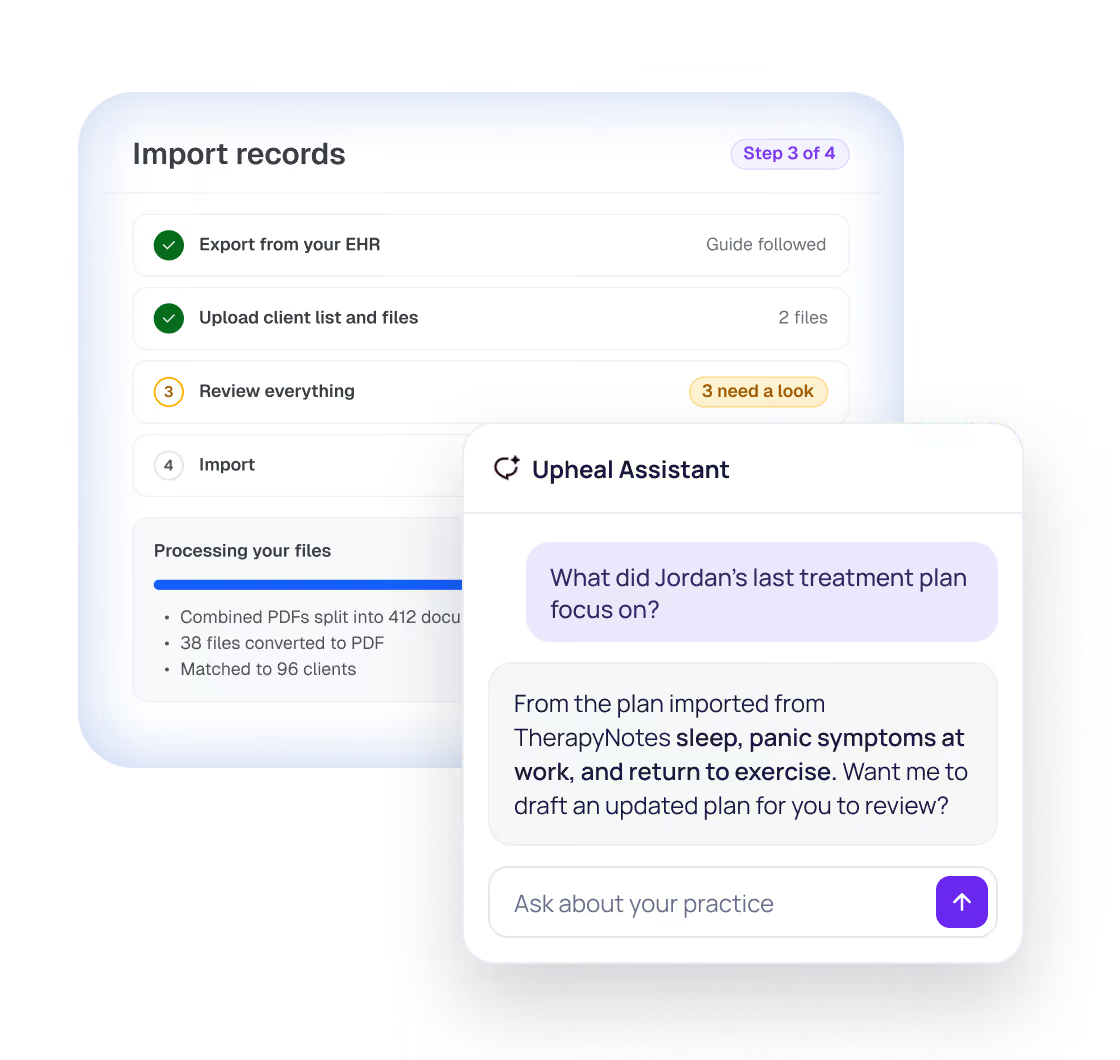
Yes, you can migrate from SimplePractice, TherapyNotes, or any other EHR. Upheal brings over your clients, notes, and documents, and files each one in the right client’s chart.

EHR migration
Switch EHRs without leaving your records behind
Upload the export from your old EHR. Upheal sorts your records into the right client charts and flags anything that needs your review before import.

Nothing changes in your old EHR
How it works
Switch to Upheal in
four steps
About an hour of your time for a solo practice. No renaming or sorting files by hand.
1
Export
Export your client records using our guide for your EHR.
2
Upload
Upload your export, even as one big ZIP.
3
Review
Confirm clients and providers, and check anything Upheal flags.
4
Import
Bring records into each client’s chart, ready for Upheal Assistant.
What client data transfers when I switch EHRs?

Client profiles and contact details
Couples and family clients
Providers on your team
Past sessions and progress notes
Treatment plans
Documents and files
Inactive and archived clients
Coming soon

Insurance details
Invoices and payment history
What’s different
History you can use, not a file dump
Put imported client records to use with Upheal Assistant from day one.

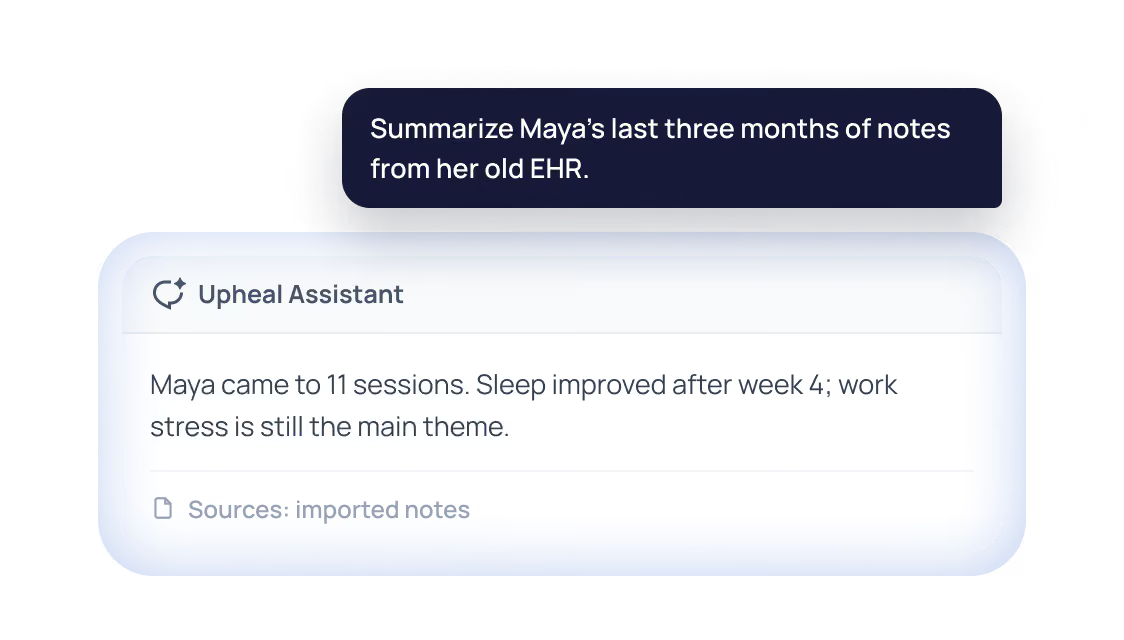
Catch up before a session
Get a summary of a client’s past notes without opening every PDF.

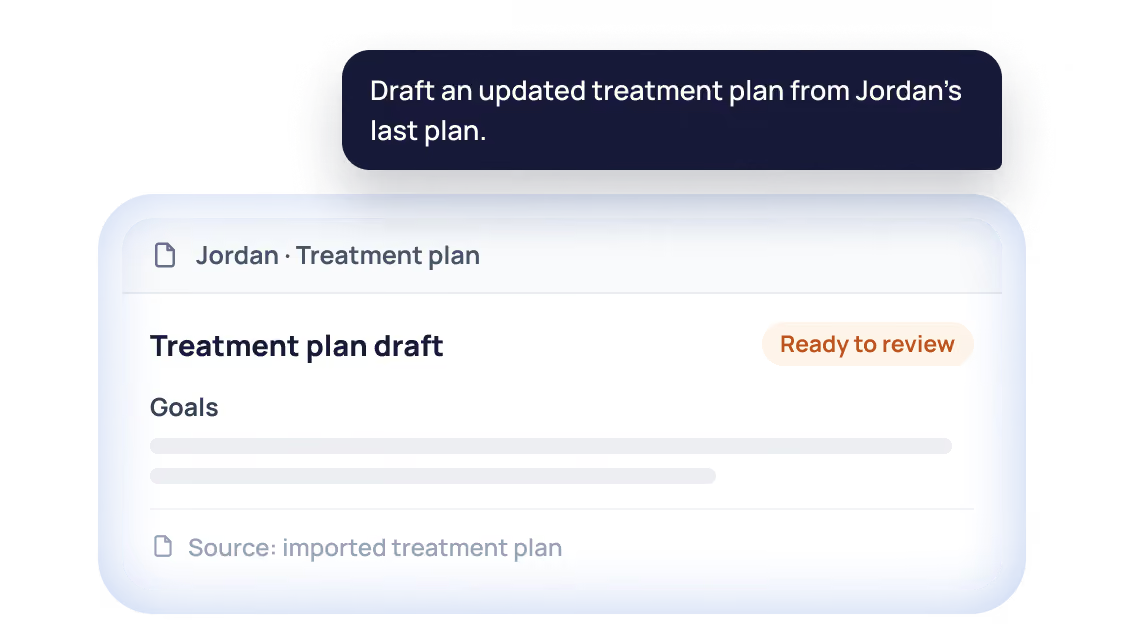
Turn an old plan into a new one
The Assistant drafts it from the imported plan. You review and sign.
Which EHRs can I migrate from?
Upheal migrates from any EHR. Here are the most popular.

SimplePractice

TherapyNotes

Jane

TheraNest

IntakeQ

Sessions Health

Tebra

Valant

Carepatron
Any other EHR
How much of my time does
migration take?
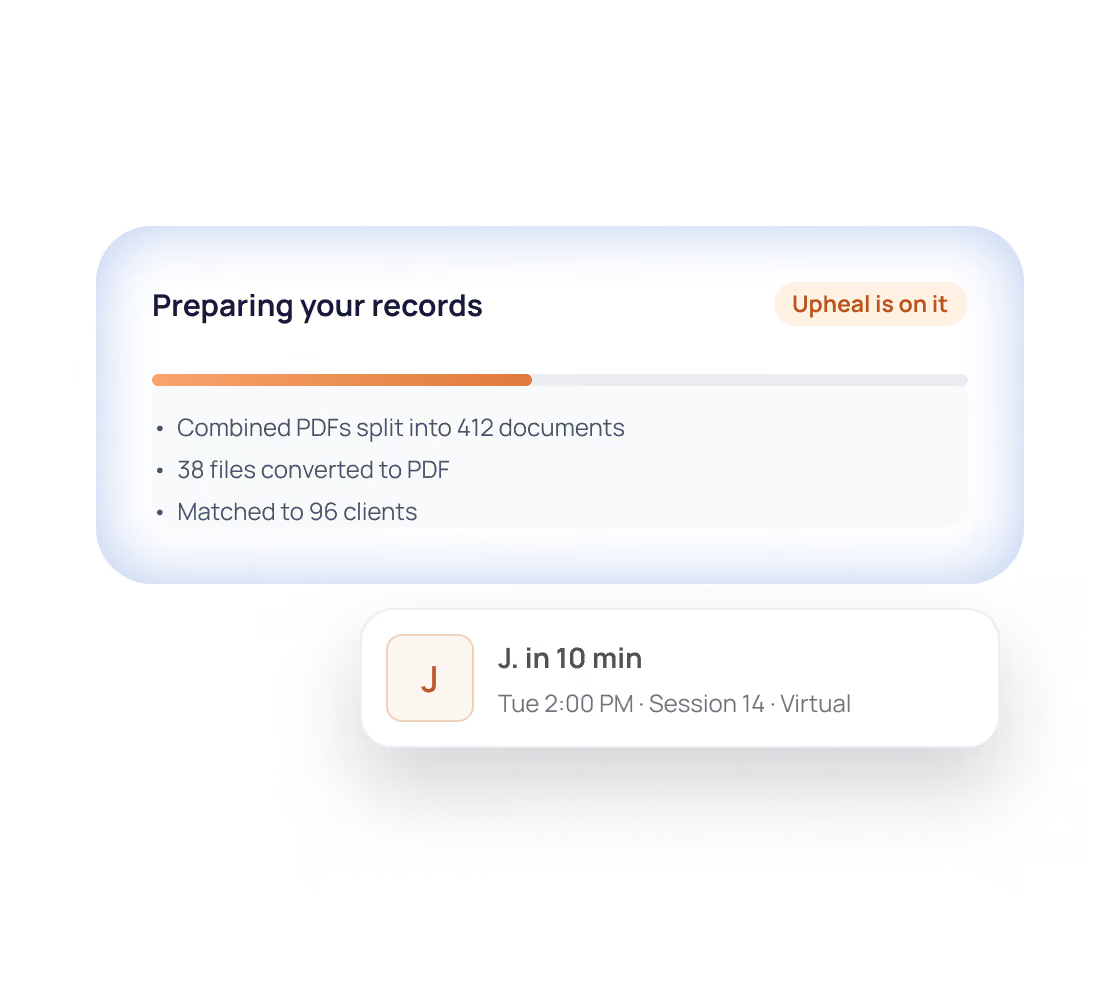
Around an hour of your time for a solo practice. You can keep seeing clients while it runs.
15–30 min
Export
Or about a day if your EHR sends it on request.
A few min
Upload
Bigger exports take longer to upload.
Varies
Upheal processes and matches your records in the background.
15–30 min
Review and import
Check clients and flagged items, then confirm the import.
Group practices
How do group practices move to Upheal?
Run the import yourself, or book a call and our team will guide you through it.
Match every provider, including former clinicians.
Import active clients first, then the rest
Get help from someone who has done it before

“They have a great import system and they even walk you through the steps specific to SimplePractice. They will do it step by step with you too if you aren’t comfortable.”
Switching from SimplePractice?
Compare what Upheal, TherapyNotes, and SimplePractice can import from your current EHR.



Client names and contact details
Limited fields
Progress notes and documents
Upload separately
Diagnoses and treatment plans
Ask AI about the imported history
Handwritten notes (scans and photos)
Insurance details
Coming soon
Non-clinical practice documents
Coming soon
Billing history
Coming soon
Questions about switching to Upheal
Can I migrate my data from another EHR to Upheal?
How long does it take to switch to Upheal?
For an individual provider, around an hour of your time. Exporting takes 15 to 30 minutes in most EHRs, or about a day if your EHR sends the export on request. Larger practices take longer to process.
Do I need to rename or sort my files first?
No, upload the export as it is, even as one ZIP file. Upheal splits combined PDFs into separate documents, converts other file types to PDF, and matches each file to the right client.
Will Upheal Assistant know my clients’ history?
Yes, the Assistant can read the records you import. Ask it about a client’s past notes, or have it draft a treatment plan from them for you to review.
What should I check before leaving my current EHR?
Check that your import is complete before you cancel. Open a few clients with long histories in Upheal and compare them with your old EHR. Keep a copy of your export for as long as your record-retention rules require.
Can I keep using my old EHR while I switch?
Yes, and you should keep it open until your import is complete. If time passes between your first import and your switch date, export again right before you cancel so nothing recent is missed.
What about inactive and archived clients?
They come over too, and Upheal archives them automatically. You can import active clients first and the rest later, and unarchive anyone in Settings.
I run a group practice. Can someone help?
Yes, book a migration call and our team will guide you through it. You can also run the import yourself and match each provider to a team member in Upheal.
Bring your practice with you
Try Upheal with a few clients first, then bring the rest of your practice when you’re ready.

HIPAA compliant
Nothing changes in your old EHR
No credit card needed